
Guide · updated 2026-11-13
Shopify Compare at Price: How to Set It and Run a Sale
Shopify's compare-at price is the original price of a product. You enter it next to the lower price you actually charge, and your theme can show the two together as a sale. Here's where to set it, how to change many products at once, what to avoid, and how it fits with prices on imported products.
What is compare-at price in Shopify?
Compare-at price is the "before" price. Price is what the customer pays. To show a sale, put the original price in compare-at and the lower price in Price. Shopify's sale price help page says the compare-at value must be higher than the value in the Price field.
For example, a jacket that normally costs $80 and is now $60 gets compare-at $80 and price $60. Compare-at price is also how people search for a "Shopify sale price" or a "Shopify strikethrough price". It's the same field.
How to set a compare-at price
Open the product in your Shopify admin. Under Price, click Compare at. Enter the original price there and the new price in Price, then save. For a variant, open it from the product's Variants section and do the same.
You can also set compare-at prices in bulk, for several variants or products at once. Shopify's help says bulk editing covers both. Use it for a store-wide sale instead of opening each product.
Setting it in a CSV file
If you edit products in a spreadsheet, the column is named Compare-at price in Shopify's current CSV help. Shopify describes it as the original price of the variant if the price has been reduced. Enter only the number, without a currency symbol, for example 9.99. The price itself goes in the Price column. The Shopify CSV import guide covers the rest of the file, and the export guide shows how to start from your current prices.
How compare-at price shows on your store
Your theme decides. Shopify says your theme controls whether and where sale prices appear, such as badges on product listing and collection pages. Many themes show the compare-at price crossed out next to the price, but the look and the places it appears differ. Check a product page and a collection page after you save.
Two more things from Shopify's help:
- Mixed variants can hide the sale on collection pages. If a product's variants have inconsistent compare-at values, the collection page may not show it as on sale even though the product page does. Leave the field blank or set a value higher than each variant's price. A value of $0.00 is not the same as blank.
- Checkout only shows the sale price. Product and collection pages can show both prices, but checkout shows only the sale price.
Compare-at price vs discounts
They are two separate tools. Compare-at price changes what the product page shows. A discount code or automatic discount is applied on top, and Shopify says automatic and code-based discounts always show a crossed-out price at checkout. Showing a discount as a strikethrough on product and collection pages needs a third-party discount app or a Shopify Partner.
| Compare-at price | Discount | |
|---|---|---|
| Where you set it | On the product or variant, in Price | In Discounts |
| Product and collection pages | Can show both prices, depending on your theme | Needs an app or a Partner to show a strikethrough |
| Checkout | Shows only the sale price | Shows a crossed-out price |
How to run a sale and end it
- Export your products first, so you have the original prices saved.
- Set a compare-at price (the old price) and a lower Price on every variant you want in the sale.
- Check the product page and a collection page in your theme.
- When the sale ends, put the original price back in Price.
- Clear the compare-at field on those variants. Shopify's help says to leave it blank for variants that shouldn't show a compare-at price.
Shopify's help doesn't describe a built-in schedule for this field, so ending a sale is a manual change or a bulk edit. Tell your team the end date and do the edit at the same time.
Worked examples
| Case | Compare-at price | Price | Result |
|---|---|---|---|
| Single product sale | $80.00 | $60.00 | Valid. Shows as a sale if your theme supports it. |
| Sale ended | (blank) | $80.00 | Valid. No sale shown. |
| Mistake: equal values | $60.00 | $60.00 | Not higher than price, so no sale. |
| Mistake: lower compare-at | $50.00 | $60.00 | Breaks Shopify's rule. Fix it. |
In a three-size shirt, S, M and L should each have their own compare-at and price. If you only fill in M, the other two variants have no sale, and your collection page may not show the shirt as on sale.
Common mistakes
- Compare-at lower than price. Shopify says it must be higher. Otherwise, the product doesn't read as a sale.
- Forgetting variants. Each variant has its own price and compare-at. Check all of them.
- Typing $0.00 instead of leaving it blank. Shopify says they are not the same.
- Messy price endings. If you take a price down by hand, keep one pattern, such as .99, across the sale so it looks consistent.
- Fake "was" prices. Show a compare-at price that you really charged. Check the pricing rules for your country.
Markets and fixed prices
If you sell in several markets, Shopify says fixed prices override the prices and compare-at prices you set in the admin. It also says sale prices for international markets can't be created in the admin, but you can import them with a CSV file.
Compare-at price and imported products
Pricing a product you copied is the same job: pick a price, then decide whether to show an original price. Set your selling price first, then a compare-at price you can stand behind. The markup calculator helps you check margin before you drop a price.
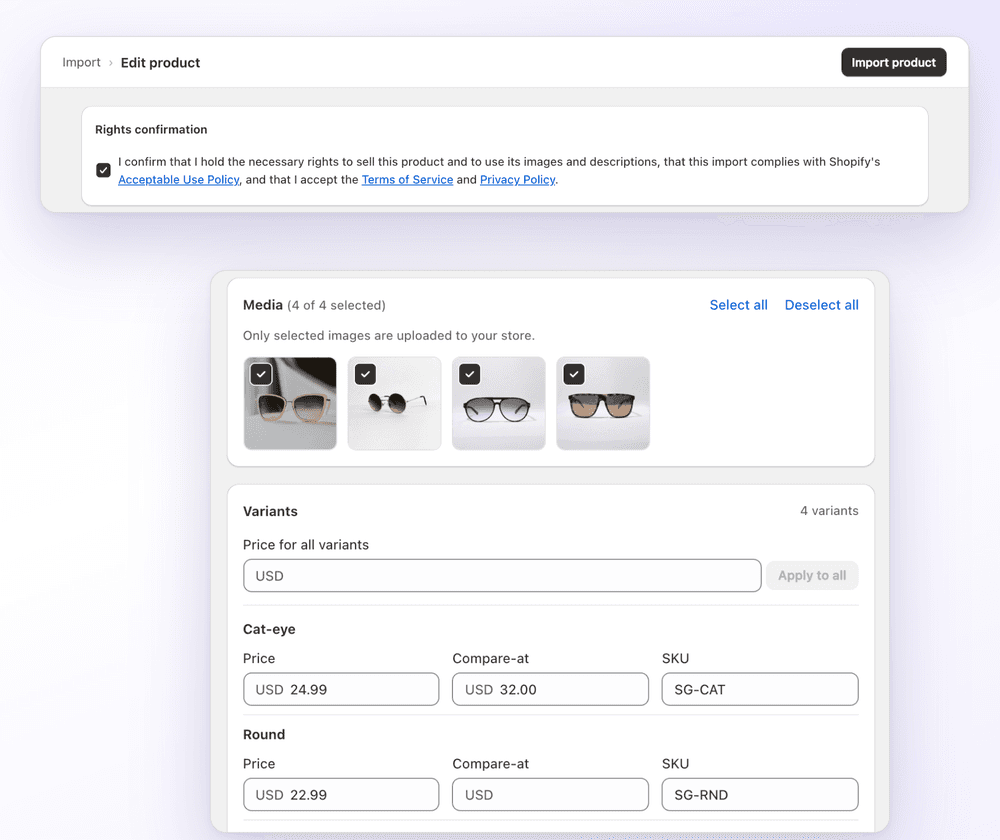
In 1Click, you can edit price, compare-at and SKU per variant in the editor before importing, and use "Apply to all" to fill every variant. The currency conversion, multiplier and optional .99 rounding set your price. The multiplier doesn't apply to compare-at prices: you type those yourself, or leave them blank. See price markup and currency conversion. 1Click is free for 3 imports in total, and we make it.
FAQ
Shopify Compare at Price: How to Set It and Run a Sale: FAQ
Still stuck? Email contact@ecomfusion.net.
What is compare-at price on Shopify?
It's the original price of a product or variant. You put it next to a lower Price to show a sale. Shopify says the compare-at value must be higher than the Price value.
Where do I find compare-at price in Shopify admin?
Open the product, go to Price and click Compare at. For a variant, open it from the Variants section. You can also set it with bulk editing.
Why isn't my strikethrough price showing?
Your theme controls where sale prices appear. Check that compare-at is higher than Price on every variant. Inconsistent variants can stop a collection page from showing the sale. A $0.00 value is not the same as blank.
How do I end a sale in Shopify?
Put the original price back in Price and clear the compare-at field. Shopify's help says to leave it blank for variants that shouldn't show a compare-at price.
Is compare-at price the same as a discount code?
No. Compare-at changes what product pages show. Discounts are applied separately, and checkout shows only the sale price for compare-at pricing.
Does 1Click's multiplier change compare-at prices?
No. You type compare-at prices per variant in the editor, or leave them blank. The multiplier and .99 rounding set the selling price.
Related

Price imported products in the editor
Set price and compare-at per variant before import, with currency conversion and a multiplier for the price. Free for 3 imports with 1Click.