
Guide · updated 2026-11-13
Shopify Product Image Size and Requirements
For square product photos, Shopify says 2048 x 2048 px usually displays best. The hard limits are 5000 x 5000 px (25 megapixels) and a file smaller than 20 MB. Here are the full requirements, plus the ways to upload images in bulk and what happens to images when you import a product.
What size should Shopify product images be?
2048 x 2048 px for square images. That's the size Shopify's product media help says usually displays best. You can upload any size up to 5000 x 5000 px, or 25 megapixels, and each file has to be smaller than 20 MB.
| Requirement | What Shopify says |
|---|---|
| Recommended size (square) | 2048 x 2048 px usually displays best |
| Maximum dimensions | 5000 x 5000 px, or 25 megapixels |
| Maximum file size | Smaller than 20 MB |
| Recommended formats | PNG first, then JPEG |
| Other accepted formats | TIFF, BMP, GIF, SVG, HEIC and WebP |
| Aspect ratio | Any, but keep it the same across your main images |
| Media per product | Up to 250 images, 3D models or videos |
| Alt text length | 512 characters maximum, 125 or fewer is best |
Shopify doesn't publish a minimum size. How large an image needs to be for zoom depends on your theme, so check your theme's documentation for that.
Aspect ratio: pick one and keep it
Shopify doesn't require a specific aspect ratio. It does ask you to use a consistent one for the images you add as your featured, or main, images. If one product's main photo is square and the next is tall, your collection pages show cards of uneven heights.
Square is the simple choice, and it's the shape Shopify's 2048 x 2048 px recommendation is written for. Whatever you choose, crop every main image to it before you upload.
File formats and file size
Shopify says the best file type for most product images is PNG, followed by JPEG. It also accepts TIFF, BMP, GIF, SVG, HEIC and WebP.
- Under 20 MB per image. A larger file isn't added to your store.
- Uploading doesn't compress your images. Shopify keeps the original quality in the admin.
- Your storefront gets optimized versions. Shopify's CDN optimizes images automatically, and serves modern formats such as WebP and AVIF when the shopper's browser supports them.
So you don't need to convert your images to WebP yourself. Upload a clean PNG or JPEG within the limits.
How many images can a product have?
A product can have up to 250 media items: images, 3D models or videos, in any mix. The first item is the product's featured image, and you drag and drop media to reorder it.
Variant images have to be images. Shopify doesn't let you use a video or a 3D model as variant media.
Alt text and file names
Alt text describes the image for shoppers who use screen readers, and for search engines. Shopify allows up to 512 characters and recommends 125 or fewer. Write what the photo shows, such as "Navy cotton T-shirt, front view", not a list of keywords.
To add it by hand, open the product, click the image to preview it, and click Add alt text. For many products at once, fill in the image alt text column of your product CSV.
Name your files before you upload them. A descriptive name such as navy-cotton-tshirt-front.jpg is easier to find later than IMG_4032.jpg. Two rules from Shopify's CSV help:
- The file name is final. You can't edit it after the image has been uploaded to your store.
- Avoid the suffixes `_thumb`, `_small` and `_medium` at the end of the file name.
Three ways to upload product images in bulk
1. On the product page
Go to Products, open a product, and use the Media section. You can drag and drop several files at once, click Upload new, or click Select existing → Add from URL to add an image from a web address. This is the quickest way for a few products.
2. Content → Files
Go to Content → Files and click Upload files. You can select up to 200 files at a time. Click the Link button beside a file to copy its URL. Files don't appear on any product by themselves: you use those URLs in a CSV, or pick the files from a product's Media section with Select existing.
The Files page has its own rules: images up to 20 MB and 25 megapixels, in JPEG, PNG, WebP, HEIC or GIF. Storage is limited by plan, so check Shopify's file uploads help if you have a very large catalog.
3. A product CSV with image URLs
A CSV file holds text only, so it can't contain the images themselves. You put a URL for each image in the image URL column. That column is Image Src in older files and Product image URL in Shopify's current template. Shopify downloads each image during the import and uploads it to your store.
- One row per image. For each extra image, add a row with the product's handle and the image URL.
- Set the order with the image position column, starting at 1.
- URLs must be publicly accessible:
https://, with no password protection. - Images only. Videos and 3D models aren't supported in the CSV.
- The CSV file can't exceed 15 MB.
For the full column list, see our Shopify CSV import guide, or start from the free product CSV template.
What happens to images when you import a product
Shopify makes its own copy of every image. The URLs in your CSV are only used during the import, so the product no longer depends on the original site afterwards.
- Images you uploaded to Files are duplicated. The product gets a new copy, and the original stays in Files.
- Dead URLs fail. If an image has been removed from the address in your file, the import fails for that product, so check old export files before you reuse them.
- Blank cells can erase data. When you overwrite existing products, a blank value in a column that's in your file replaces the existing value. A column you leave out of the file entirely stays as it is.
Use only images you have the right to use
A photo on a supplier or marketplace listing isn't automatically yours to publish. Use your own photos, or images your supplier or the brand has allowed you to use. Our guide on whether it's legal to copy Shopify products covers this in more detail.
Importing products with their images from a link
If your products are on Amazon, AliExpress, eBay or a Shopify store you manage, 1Click imports them from a link with their images, title, description, variants and prices. In the editor you pick which images to keep, and only the selected ones upload to your store. You confirm you have the rights to the content on every import.
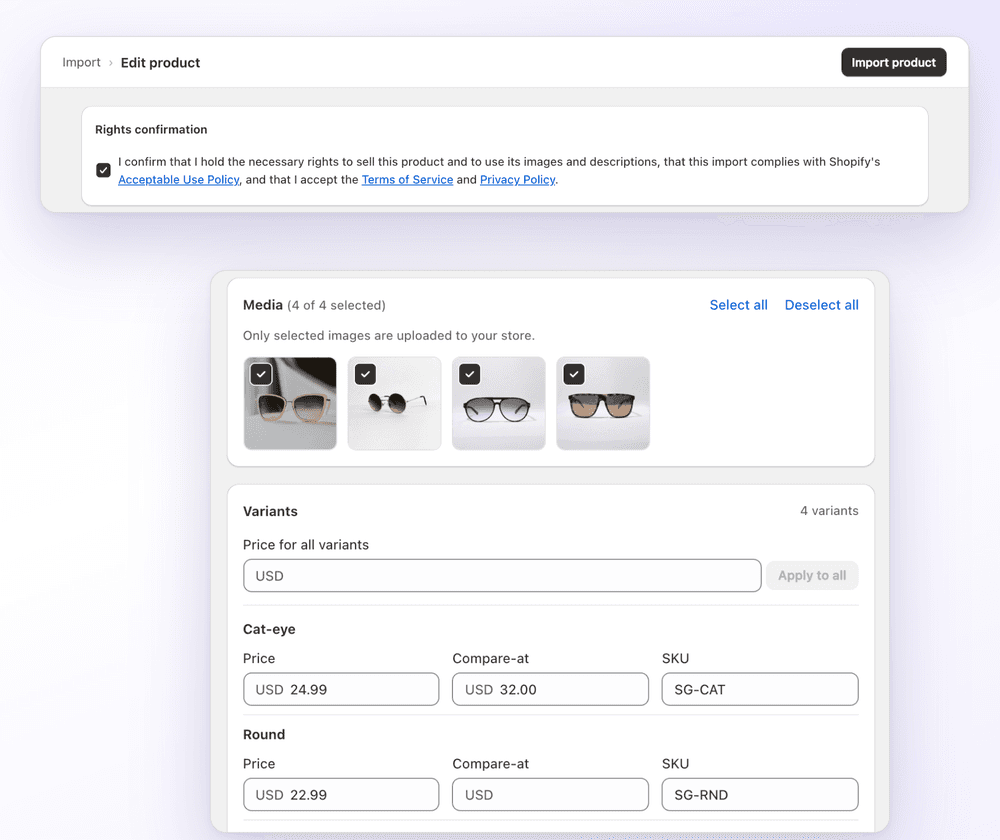
1Click isn't an image editor, so Shopify's size and file limits still apply to the images you import. More on importing variants and images.
FAQ
Shopify Product Image Size and Requirements: FAQ
Still stuck? Email contact@ecomfusion.net.
What is the best image size for Shopify products?
For square product images, Shopify says 2048 x 2048 px usually displays best. You can upload any size up to 5000 x 5000 px, or 25 megapixels, as long as the file is smaller than 20 MB.
What is the maximum Shopify product image size?
5000 x 5000 px, or 25 megapixels, and a file size smaller than 20 MB. An image over those limits can't be added to a product.
Which image formats does Shopify accept?
Shopify recommends PNG for most product images, followed by JPEG. It also accepts TIFF, BMP, GIF, SVG, HEIC and WebP. On your storefront, Shopify serves modern formats such as WebP and AVIF itself when the shopper's browser supports them.
How many images can I add to a Shopify product?
Up to 250 media items per product. That total includes images, 3D models and videos.
How do I bulk upload images to Shopify?
Upload the files in Content → Files, up to 200 at a time, and copy each file's link. Paste the links into the image URL column of a product CSV, one row per image, and import it from Products → Import. See our Shopify CSV import guide for the columns.
Do Shopify product images have to be square?
No. Shopify accepts any aspect ratio. It asks you to keep the same aspect ratio across your main product images, so your collection pages look even. Square is a common choice, and Shopify's 2048 x 2048 px recommendation is for square images.
Related

Skip the image spreadsheet
Import products with their images from a link, and choose which images upload. Free for 3 imports with 1Click.