
Guide · updated 2026-10-29
How to Duplicate a Shopify Store
Shopify has no button that copies a whole store. Instead, you create a new store and move each part across: products and customers with CSV files, the theme as a file, and the rest by hand. Here's Shopify's process step by step, and what can't come with you.
Can you duplicate a Shopify store?
Not in one click. Shopify's process is to create a new store, move products and customers with CSV files, move the theme, and set up everything else again. On Shopify Plus, you can copy the theme, products and files when you create an expansion store.
The steps below follow Shopify's backups and duplication help. If you're duplicating because the store is changing owner, Shopify suggests transferring ownership of the account instead.
What can and can't be copied
| How it moves | What |
|---|---|
| CSV export and import | Products (and collections, if you add a collection column), customers |
| Theme download and upload | Your theme |
| Copy by hand | Pages, blog posts, menus, and settings such as taxes, shipping, checkout and payments |
| Reinstall | Apps |
| Can't transfer | Orders (not through the Shopify admin), discount codes, issued gift cards, saved custom reports, visitor traffic data |
Gift card products move with the product CSV like any other product. Gift cards you've already issued don't.
Step 1: Create the new store on the same plan
In the original store's admin, go to Settings → Organization → Create store and put the new store on the same subscription plan as the original. The full steps are in how to create another Shopify store.
Step 2: Copy the theme
- In the original store's admin, go to Online Store.
- For the theme you want, open its … actions menu and click Download theme file.
- Shopify emails the theme as a .zip file to the address of your staff login.
- In the new store, upload the theme file from your computer.
The download doesn't include your products, collections, menus, pages, blog posts, images or the files under Content → Files. Those move in the steps below.
Step 3: Move your products and collections
- In the original store, go to Products → Export and export your products as a CSV file.
- To bring collections across, add a collection column to the file. Otherwise, create the collections by hand in the new store.
- In the new store, go to Products → Import and import the file.
Shopify's checklist also has you prepare your product media for export before you import, so check that images came across in the new store.
Variants, images and the errors that stop an import are covered in the Shopify CSV import guide.
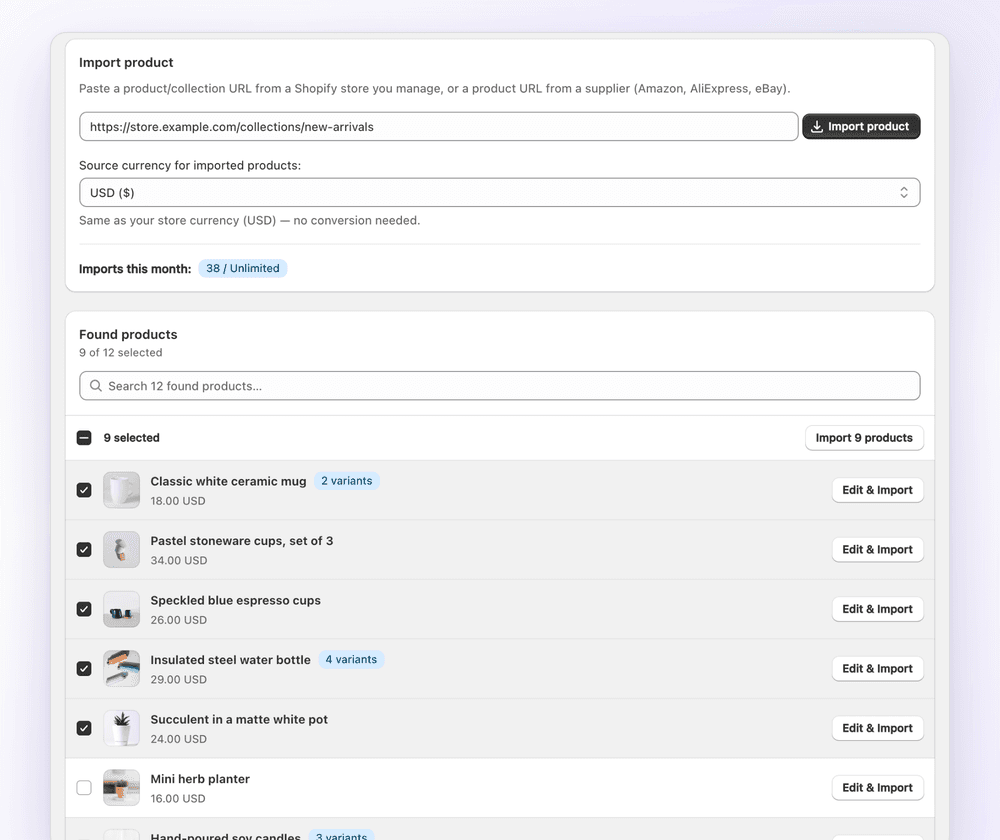
Or copy from a link. If you manage both stores, 1Click copies products and whole collections from a product or collection link instead of a file. It converts the source currency to the new store's currency, and lets you pick which images to import and edit prices and SKUs before anything is created. Collections import in the background, and you confirm you hold the rights on every import. It copies once and doesn't keep the two stores in sync. It's free for 3 imports (pricing).
Step 4: Move your customers
Export your customers as a CSV file from the original store's Customers page, then import the file on the new store's Customers page. Passwords and order history don't come across, so invite customers to create new passwords. Consent, tags and duplicates are covered in how to import customers to Shopify.
Step 5: Rebuild pages, blog posts, menus and settings
- Pages and blog posts: copy and paste them into the new store.
- Menus: rebuild your online store menus.
- Settings: set up taxes, shipping, checkout and payments again by hand.
Step 6: Reinstall your apps
Apps don't come across. Install each one again in the new store and set it up. Apps are billed per store, so each store pays for its own.
On Shopify Plus: create an expansion store with an import
A Shopify Plus organization can have up to 10 stores: 1 main store and 9 expansion stores. When you create an expansion store, you can import themes, products, variants, collections and their metafields, and files from another store in your organization. Reference-type and category metafields aren't included.
The import only works when you create the store. After that, data isn't synced between stores. Apps are billed per store, and each store needs its own theme licence. Details are in Shopify's expansion stores help.
Duplicate a theme inside the same store
To try changes without touching your live theme, go to Online Store, open the theme's … actions menu and click Duplicate. The copy is named "Copy Of" plus the theme's name. A store can hold up to 20 themes, so delete one if you're at the limit. To use a theme in a different store, download it instead (Step 2).
FAQ
How to Duplicate a Shopify Store: FAQ
Still stuck? Email contact@ecomfusion.net.
Can you duplicate a Shopify store?
Not with one click. Create a new store from Settings → Organization, move products and customers with CSV files, download and upload the theme, then rebuild pages, menus and settings and reinstall your apps. On Shopify Plus, an expansion store can import the theme, products, collections and files when you create it.
How do I copy my Shopify store to another account?
Create the new store from the other account instead of from the original store's Organization page. Then log in to both stores as the store owner and follow Steps 2 to 6: move products and customers with CSV files, upload the theme file, and set up pages, settings and apps again. If the store itself is changing hands, Shopify suggests transferring ownership of the account instead of duplicating it.
Can I duplicate a Shopify store for free?
The CSV export and import and the theme download cost nothing extra. The new store needs its own Shopify plan, though, and outside Shopify Plus each store is billed separately.
Can I copy my Shopify theme to another store?
Yes. Download the theme file from Online Store in the original store, then upload it to the new one. A theme bought from the Shopify Theme Store is licensed only to the store you bought it for, so the new store needs its own licence.
Can I clone someone else's Shopify store?
Only content you have the rights to use. Another store's products, photos and text aren't yours just because they're public. See is it legal to copy products from another Shopify store? 1Click copies only from Shopify stores you manage.
Do orders and discount codes transfer?
No. Shopify says orders can't be imported into a store through the Shopify admin, and discount codes, issued gift cards and saved custom reports can't be transferred. Recreate the discount codes you still use in the new store.
Related

Moving products to your new store?
Copy products and collections from a store you manage with 1Click, with currency conversion and editing before import. Free for 3 imports.