
Bulk import
Bulk Upload Products to Shopify
There are three practical ways to add many products to Shopify at once. Shopify's own CSV import, a bulk image upload, or an importer app that copies a whole collection for you. Here's how each one works and when to use it.
4.1 from 8 reviews on the Shopify App Store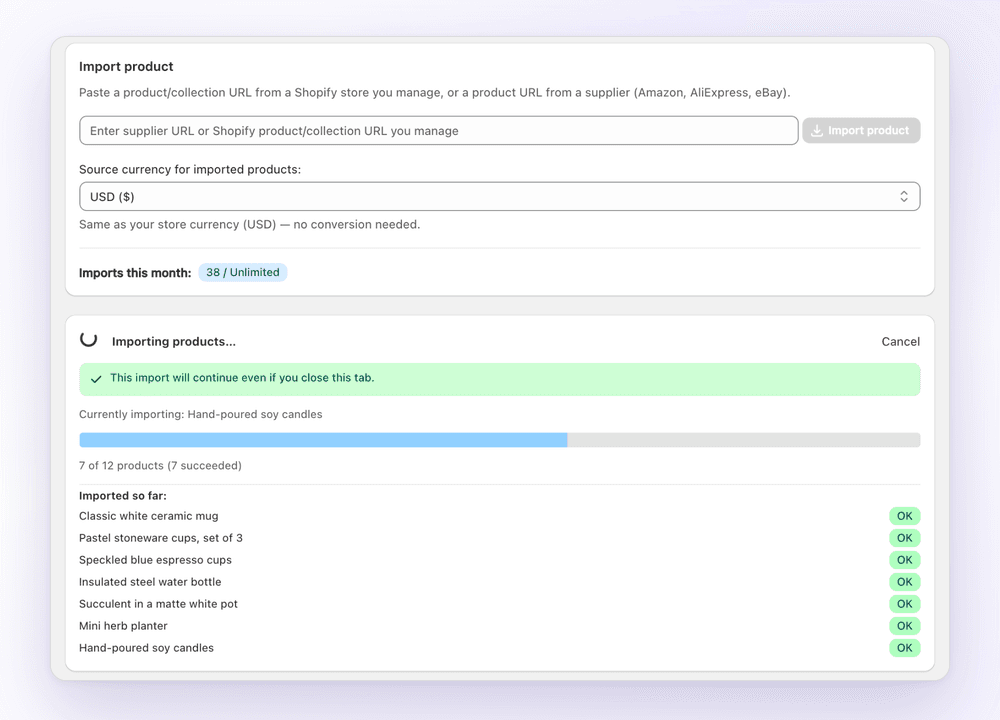
In 1Click
Bulk import: what you get
- Paste one collection link from a Shopify store you manage
- Search the found products and select the ones you want
- Import them all at once, or edit any product first
- The import keeps running if you close the tab
- Every imported product stays listed with its source
How it works
- Paste a collection URL from a Shopify store you manage.
- 1Click lists every product it found. Search and select the ones to import.
- Click Import. Progress shows product by product, and you can close the tab.
- Open Imported products to see each new product with its price, date and source.
Method 1: Shopify's CSV import (free, built in)
Shopify can create or update products from a CSV file. Go to Products → Import in your admin, upload the file, preview it, then import. Each row is a variant, and rows that share a Handle become one product.
CSV is the right choice for moving hundreds of products from another platform, or for editing many existing products at once. The work is in preparing the file: every column has to match Shopify's format, images need public URLs, and variants need their own rows.
- Best for: migrations and mass edits
- Cost: free
- Effort: high. Use our free template and CSV checker to avoid errors
Method 2: Bulk image upload
To upload many images, go to Content → Files in Shopify admin and drag in many files at once. Each file gets a public URL on Shopify's CDN.
Copy those URLs into the Image Src column of your product CSV, one row per extra image, and re-import with “Overwrite products with matching handles” ticked. That attaches all the images in one go instead of product by product.
Method 3: Import from links with an app (no spreadsheet)
When the products already exist online, in another Shopify store you manage or on Amazon, AliExpress or eBay, an importer app skips the spreadsheet. 1Click reads the product page and fills in the title, description, images, variants and price for you.
For Shopify collections, paste the collection link and import every product in it at once. Bulk imports run in the background, so you can close the tab while they finish.
- Best for: copying collections between your stores, adding supplier products
- Cost: free for 3 imports, then from $4.99/month
- Effort: low. Paste a link, review, import
Screenshot
See it in the app
FAQ
Bulk import: FAQ
Still stuck? Email contact@ecomfusion.net.
How do I bulk upload products to Shopify?
Either fill in Shopify's product CSV template and import it under Products → Import, or use an importer app. With 1Click you paste a collection link from a store you manage and import every product in it at once.
Can I bulk upload products to Shopify without a CSV?
Yes. Importer apps like 1Click read product pages directly, so there's no spreadsheet. Paste a collection link from a Shopify store you manage, select the products, and import.
How do I bulk upload images to Shopify?
Upload the files under Content → Files, copy their URLs into the Image Src column of a product CSV, and re-import with “Overwrite products with matching handles” ticked.
Does the bulk import stop if I close the browser?
No. 1Click bulk imports run in the background and continue if you close the tab. You can also cancel an import while it runs.
How many products can I bulk import?
It depends on your plan: 3 imports in total on Free, 100 per month on Standard ($4.99) and unlimited on Plus ($14.99).
Related

Your next product is one link away
Install 1Click free and import your first 3 products today. Paid plans start at $4.99/month.