
Guide · updated 2026-10-28
How to Add Products to Shopify
There are three ways to get products into your store: one at a time in Shopify admin, many at once with a CSV file, or from a product link with an app. Here's each method step by step, the fields that matter, and how to pick the right one.
The quick answer
In Shopify admin, go to Products → Add product, enter a title (the only field you need to save), add the details and click Save. To add many products at once, use a CSV file. To add products that already exist online, import them from a link.
Method 1: Add a product by hand
The Add product page is where every Shopify product starts, and its fields are the same ones a CSV file or an app fills in. Learn it once and the other two methods make more sense.
- In Shopify admin, go to Products and click Add product.
- Enter a title. Lead with what the product is, then the key detail.
- Write the description: short paragraphs plus a list of specs.
- Add images or video under Media. The first image is the one shoppers see in lists.
- Set the price, and a compare-at price only for a real previous price.
- Set the inventory: stock, SKU and barcode.
- Add options such as Size or Color if the product comes in variants.
- Set the status, check Publishing, and click Save.
The product fields that matter
| Field | What to know |
|---|---|
| Title | The only field you need to save a product. |
| Status | Active, Draft or Unlisted. Unlisted keeps a product reachable by its direct link but hidden otherwise. Set Active when it's ready to sell. |
| Publishing | The sales channels the product is available on. Click the adjust icon, pick the channels, click Done, then Save. |
| Tags | Up to 250 per product, each up to 255 characters. Tags can drive collections with conditions. |
| Search engine listing | The page title and meta description in search results. Shopify may cut off titles over 70 characters and descriptions over 320. |
| Barcodes | Up to 20 per product or variant, so codes from different suppliers or regions can sit on the same item. |
Adding variants such as size and color
Add options such as Size or Color on the product page, then type each value (S, M, L). Shopify creates a variant for each combination, and each variant gets its own price, SKU and stock. Delete combinations you don't sell instead of leaving them at zero stock.
Importing products that already have variants? See how variants and images come across on import.
Method 2: Add many products with a CSV file
A CSV file holds the same fields as the Add product page, one row per variant. You fill it in a spreadsheet and upload it under Products → Import, up to 15 MB per file. It's free and it's the standard way to move a whole catalog. Start from our free Shopify CSV template and follow the step-by-step Shopify CSV import guide.
Method 3: Import from a link with an app
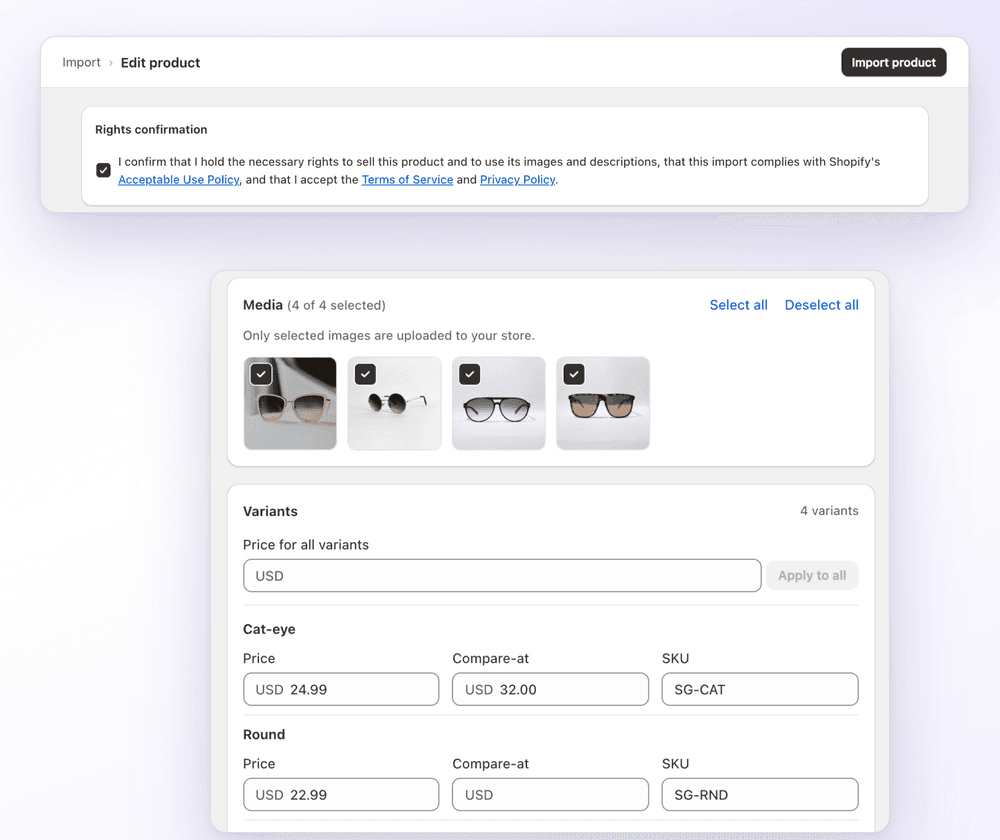
If the product already exists online, retyping it is wasted time. With 1Click you paste a product link from Amazon, AliExpress or eBay, or a product or collection link from a Shopify store you manage. It imports the title, description, images, variants and prices, and you can edit everything before the product is created:
- Pick the images you want. Only selected images upload.
- Set the price, compare-at price and SKU per variant.
- Convert the source currency to your store currency, apply a price multiplier and optional .99 rounding.
- Rewrite the title and description with AI, and add the product to collections.
1Click is free for 3 imports. Standard is $4.99/month for 100 imports a month, and Plus is $14.99/month for unlimited imports (pricing). It imports each product once and doesn't sync stock or prices afterwards. See every supported source, or bulk upload whole collections without a spreadsheet.
Which method should you use?
| Your situation | Method | Cost |
|---|---|---|
| A few products you write and photograph yourself | By hand in Shopify admin | Free |
| A whole catalog, a migration, or bulk edits | CSV file | Free |
| Supplier products, or copying between your own stores | Import from a link | Free for 3, then from $4.99/month with 1Click |
After you add it: check it's live
If the product doesn't show in your store, open it and check two things: the status is Active, and the sales channels under Publishing include your online store. Then preview the product page on a phone and check the price against your costs.
FAQ
How to Add Products to Shopify: FAQ
Still stuck? Email contact@ecomfusion.net.
How do I add products to my Shopify store?
In Shopify admin, go to Products → Add product, enter a title and the other details, set the status to Active and click Save. To add many at once, use Products → Import with a CSV file, or import products from a link with an app.
Can I add products to Shopify without a CSV?
Yes. Add them one by one on the Add product page, or import them from a link with an app. With 1Click you paste an Amazon, AliExpress or eBay link, or a link from a Shopify store you manage, and it fills in the title, description, images, variants and prices.
How do I add products from AliExpress to Shopify?
Copy the AliExpress product link and paste it into an app like 1Click. Pick the images, check the variant prices and SKUs, then import. See our AliExpress to Shopify guide.
How do I add a product to a collection in Shopify?
For a collection with conditions, give the product a tag or other value the conditions match, and it's added automatically. For a manual collection, add the product to the collection directly. If you import with 1Click, you can choose collections before the import.
Why isn't my product showing in my store?
Check that its status is Active, not Draft or Unlisted, and that your online store is selected under Publishing on the product page. Save after any change.
Related

Add your next product from a link
Import from Amazon, AliExpress, eBay or your own Shopify stores with 1Click. Free for 3 imports.