
Guide · updated 2026-10-22
How to Import Products to Shopify with a CSV File
Everything you need to bulk upload products with Shopify's CSV importer: the template, which columns matter, variants, images, saving the file correctly, and how to fix the errors that stop an import.
What is a Shopify product CSV file?
A CSV (comma-separated values) file is a plain-text spreadsheet. Shopify uses one to create or update many products in a single upload. Each row describes one variant of a product, or one extra image, and a column called Handle ties the rows of a product together.
Shopify's CSV import is free and built into every plan. It's the standard way to move a catalog from WooCommerce, Wix, Squarespace or Magento, or to edit hundreds of prices at once. Its downside is preparation: the file has to follow Shopify's format exactly, or the import stops with an error.
Step 1: Get the template
Start from a file that already has the right headers. You have two options:
- Download a template. Our free Shopify CSV template comes blank, as a sample with variants, or as a 50-product dummy store for testing a theme.
- Export your own products. In Shopify admin go to Products → Export. The file has every column your store uses, including metafields, which makes it the best starting point for updates.
Step 2: Fill in the columns that matter
The full template has more than 40 columns, but most are optional. Only Handle is required, and new products need a Title. These are the ones most stores fill in:
| Column | Example | Notes |
|---|---|---|
Handle | classic-cotton-tee | Lowercase, hyphens, unique per product. Becomes the URL. |
Title | Classic Cotton T-Shirt | First row of each product only. |
Body (HTML) | <p>Soft cotton…</p> | The description. HTML allowed. |
Vendor, Type, Tags | Demo Brand, T-Shirt, "cotton, basics" | Used for filters and automated collections. |
Option1 Name / Option1 Value | Size / M | Use Title / Default Title when there are no variants. |
Variant Price | 19.99 | A plain number: no $ sign, no thousands separator. |
Variant SKU, Variant Inventory Qty | TEE-BLK-M, 25 | Stock as a whole number. |
Image Src | https://…/tee.jpg | A public, direct link to the image file. |
Status | active | active, draft or archived. |
The template page explains every column, including inventory policy, weights and SEO fields.
Step 3: Add variants
Each variant gets its own row with the same Handle. Fill in the product details (Title, Body, Vendor, option names) on the first row only. Every variant row needs its option values, price and SKU.
| Handle | Title | Option1 Name | Option1 Value | Variant SKU | Variant Price |
|---|---|---|---|---|---|
| classic-cotton-tee | Classic Cotton T-Shirt | Size | S | TEE-S | 19.99 |
| classic-cotton-tee | M | TEE-M | 19.99 |
A product can have up to three options (for example Size, Color and Material). Each combination of option values must be unique, so two rows with Size M and Color Black in the same product will fail.
Step 4: Add images
Put the main image in Image Src on the product's first row. For each extra image, add a row with only the Handle, Image Src and Image Position (2, 3, 4…). To attach an image to a specific variant, put its URL in that variant's Variant Image column.
Step 5: Save as CSV UTF-8
Accented characters and symbols break if the file isn't UTF-8 encoded. How to save it correctly:
- Excel: File → Save As → CSV UTF-8 (Comma delimited) (.csv).
- Google Sheets: File → Download → Comma-separated values (.csv). Sheets always uses UTF-8.
- Numbers: File → Export To → CSV, with Text Encoding set to Unicode (UTF-8).
Then drop the file into our Shopify CSV checker. It finds misspelled headers, duplicate variants, bad prices and broken image links in your browser, before Shopify rejects them.
Step 6: Import the CSV into Shopify
- In Shopify admin, go to Products → Import and add the file.
- Tick Overwrite products with matching handles only if you're updating existing products.
- Click Upload and preview, check the preview, then click Import products.
Large files import in the background, and Shopify emails you when they finish. Afterwards, open a few products, especially ones with variants, and check their images, prices and options.
Updating existing products with CSV
To change prices, tags or descriptions in bulk, export the products, edit the columns you want to change, and re-import with Overwrite products with matching handles ticked. Shopify matches rows by Handle and updates those products.
Be careful with blank cells when overwriting: a column you include but leave empty can clear the existing value. Delete columns you don't want to change from the file instead of emptying them.
Common Shopify CSV import errors and how to fix them
| What you see | Cause | Fix |
|---|---|---|
| Illegal quoting | A quote mark inside a cell isn't escaped | Re-save from a spreadsheet app as CSV UTF-8, or double the quote marks. |
| Missing headers | A required column is missing or misspelled | Copy the header row from the template. Names must match exactly. |
| Title can't be blank | A new product's first row has no Title | Add the title, and keep each product's rows together. |
| Price is not a number | Currency symbols or commas in the price | Use plain numbers like 1299.00. |
| The variant … already exists | Two rows share the same option values | Make each combination of option values unique. |
| Images missing after import | Links aren't public or direct | Use direct image URLs, or upload to Content → Files first. |
| Characters like é in text | File isn't UTF-8 | Save as CSV UTF-8 and import again with overwrite. |
| File too large | Over Shopify's 15 MB limit | Split the products across several files. |
Faster: skip the CSV and import from a link
CSV is the right tool for migrations, but it's slow for adding products that already exist online. If your products are on Amazon, AliExpress, eBay or another Shopify store you manage, 1Click reads the page and fills in every column for you: title, description, images, variants and a price converted to your currency, with an AI rewrite of the text.
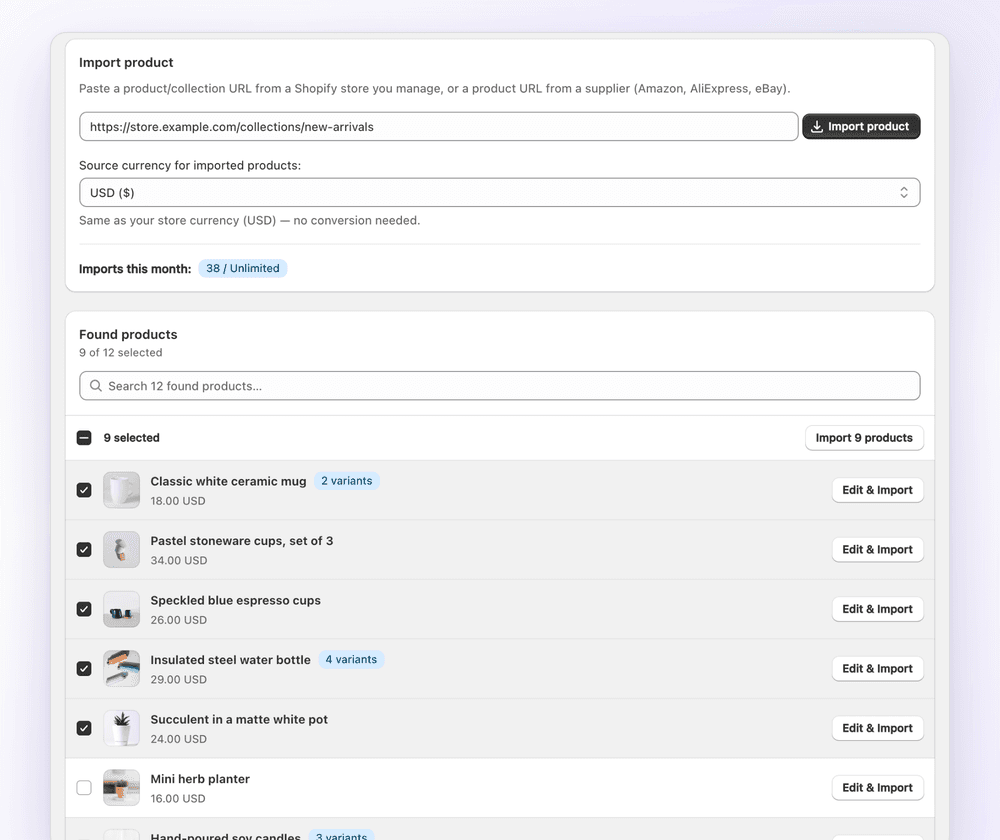
For whole collections, see bulk upload without a CSV and copying products between Shopify stores.
FAQ
Shopify CSV import: FAQ
Still stuck? Email contact@ecomfusion.net.
Can I bulk upload products to Shopify?
Yes. Shopify's CSV import (Products → Import) creates or updates many products at once. An importer app like 1Click can also bulk import a whole collection from a Shopify store you manage, without a spreadsheet.
Can I import an Excel file into Shopify?
Not directly. Open the .xlsx file in Excel and use File → Save As → CSV UTF-8 (Comma delimited), then import the CSV.
How many products can I import with one CSV?
Shopify limits the file to 15 MB. Larger catalogs need to be split into several files, imported one after another.
Why are my Shopify products not importing?
Usually a misspelled column header, an empty Handle or Title, a price with a currency symbol, duplicate variants, or a file not saved as UTF-8. Run the file through our free CSV checker to find the exact row.
Do I need every column in the template?
No. Only Handle is required, and new products need a Title. Missing columns get Shopify's defaults, or keep their current values when you overwrite existing products.
How do I import inventory to Shopify with CSV?
For stock levels, export and import the separate inventory CSV from Products → Inventory, which has a column per location. The product CSV's Variant Inventory Qty column works for a single location.
Related

Done with spreadsheets?
Import products from a link with 1Click: images, variants and AI-written copy included. Free for 3 imports.